Thunderbird on PC
To configure your email Account on your PC, it's recommended to use Thunderbird as your main email client.
Thunderbird connects to the mailserver flawlessly and it's just a few clicks to also synchronise calendars and contacts.
If you already use Thunderbird, (It's recommended to update to the latest version) you simply need to open the extended menu and select "New" and "eMail Account".
-
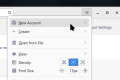 Select the "hamburger menu" top right and select "New Account"
 -
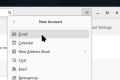 Click on "Email"


Afterwards you will see the "New Account" dialog. If you are a new user, you will also see this screen. Enter your credentials as shown below and click "Continue"

Thunderbird should find the best settings by itself and you only need to choose between "IMAP" and "POP3". (The differences between these protocols can be found here). Click "done" if you picked one:

The last page is completely optional. Here you can connect to your personal Address Book and your Personal Calendar to sync them with thunderbird.
You can also subscribe to the "Global Address Book" (If your domain has this feature activated).