Using exchange on iOS
Aus JHML Knowledge Base
To connect your account to your iPhone by using the Stock mail app, you need to follow these steps:
- Open the iOS "Settings" app and scroll down to the "Mail" app.
- Open the Mail settings and select "Mail Accounts"
- On the next screen select "Add Account"
- Now tap on "Add Mailaccount"
- Select "Microsoft Exchange"
- Now enter your email address and a unique name for your account
- Now tap on "configure manually"
- The mail app should catch all necessary details automatically. Just enter your account password
- Select which details you want to synchronize.
- The account is configured and ready to use :)
Here are the screenshots from iOS:
-
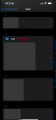 Select the "Mail" app in Settings
 -
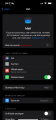 Select "Mail Accounts"
 -
 Select "Add Account"
 -
 Tap on "Add Mail-Account"
 -
 Select "Microsoft Exchange"
 -
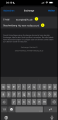 Enter your email address and account name
 -
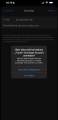 Tap on "configure manually"
 -
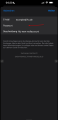 Enter your password
 -
 Select which details you want to sync