Using IMAP/SMTP on Android
Aus JHML Knowledge Base
To connect your account to your Android phone by using IMAP and SMTP, you need to follow these steps:
- Go to the settings and open the "Accounts" setting. If you don't use a stock Android, please try to find a similar setting.
- Search for "Accounts" and tap on it.
- Tap on "Add Account"
- Select "IMAP" (or POP3)
- Enter your email address
- Enter your password
- Enter the serverurl for INCOMING messages (IMAP/POP3)
- Enter the serverurl for OUTGOING messages (SMTP)
- Set the additional settings and accountdetails.
- finished
Here are the screenshots from stock android:
-
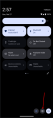 Pull down from the upper part of your screen and tap on the settings icon.
 -
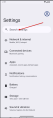 Tap on the search and search for "Account"
 -
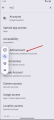 Tap on "Add Account" to open the account settings.
 -
 Tap on "Add Account"
 -
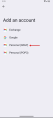 Select/Tap "IMAP" (or POP3)
 -
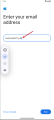 Enter your email address
 -
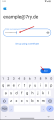 Enter your password
 -
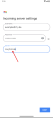 Enter the mailservers' IMAP url (mx.jhml.de)
 -
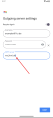 Enter the mailservers' SMTP url (mx.jhml.de)
 -
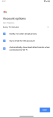 Select the additional setting how you see fit
 -
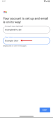 Select a unique name for your Account and set your own name (or the name you want to show if someone receives an email)
 -
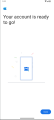 Setup complete :-)